Introduction to editor
This guide walks you through the Editor so you can model multi‑building, multi‑floor indoor maps quickly and safely.
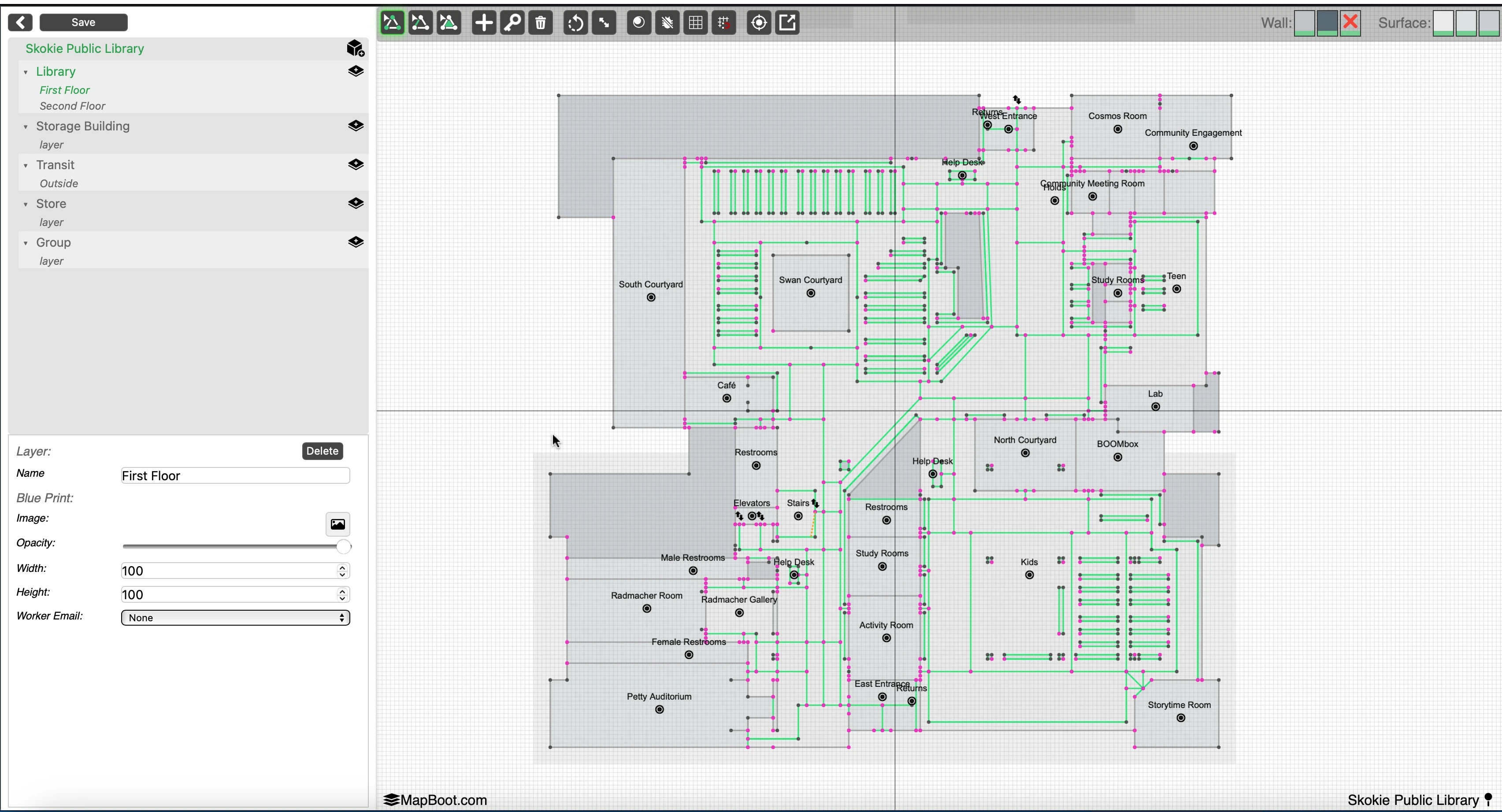
1) Editor Layout
The editor has three main areas:
- Left Panel — Map Tree & Properties
- Map Tree (top): Groups → Layers.
- Right Panel - Properties (bottom): Context‑sensitive form for the selected item .
- Top Toolbar — Tools & Toggles
- Different selection types, drawing tools, rotate/scale selection, debuging, grid/snap, fit/center, and other utilities.
- Viewport — Your Map
- Infinite canvas with a metric/imperial grid. Pan/zoom and draw geometry; see your blueprint and vector layers.
Tip
If you don’t see the vector lines or text immediately, zoom in or click Center View in the toolbar to focus the active floor.
2) Keyboard & Mouse Controls
- Multi‑select:
Ctrl+ click or rectangle selection (when the selection tool is active) - Delete selection:
Delete/Backspace - Undo :
Cmd/Ctrl + Z - Pan:
CmdorAlt+ drag with mouse - Zoom: scroll
3) Left Panel — Map Tree
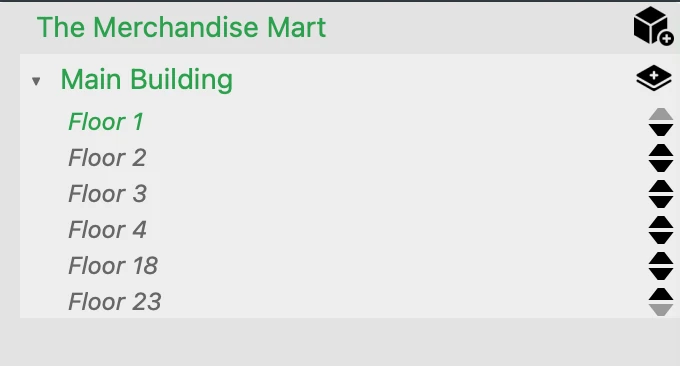
The tree represents your map structure. Items are context-sensitive: selecting an item determines which properties you can edit. Groups and Layers tagged with DEV will not appear in the published version, this lets you keep map sections local during development before going live.
4.1 Buildings & Floors
- A Map contains one or more Buildings.
- Each Building contains one or more Floors.
- Select a Floor to make it active on the canvas.
- In Properties, you can set the Floor name and attach a Blueprint image (PNG/JPG).
Blueprint tips - Use Opacity to fade the image while tracing. - Use Background Scale to scale the blueprint so vector geometry aligns with real‑world units.
4.2 Groups & Layers
- A Group is the container object that holds one or more Layers. In most projects, a Group represents a Building, but it can also represent an outdoor area that holds the connecting paths linking multiple buildings together.
- A Layer is the technical term used in the editor, but in real‑world usage it usually corresponds to a Floor of a building (or an equivalent level in an outdoor Group).
Tip
For the most accurate pathfinding results, ensure that transitions between floors or buildings occur only at registered locations.
- Between floors: Use locations such as stairs, elevators, or escalators, and make sure they exist on both connected floors.
- Between buildings: Use designated entry/exit points such as entrances.
This setup ensures that the routing engine can calculate correct paths and provide accurate turn-by-turn directions.
4) Properties Panel (context‑aware)
Map
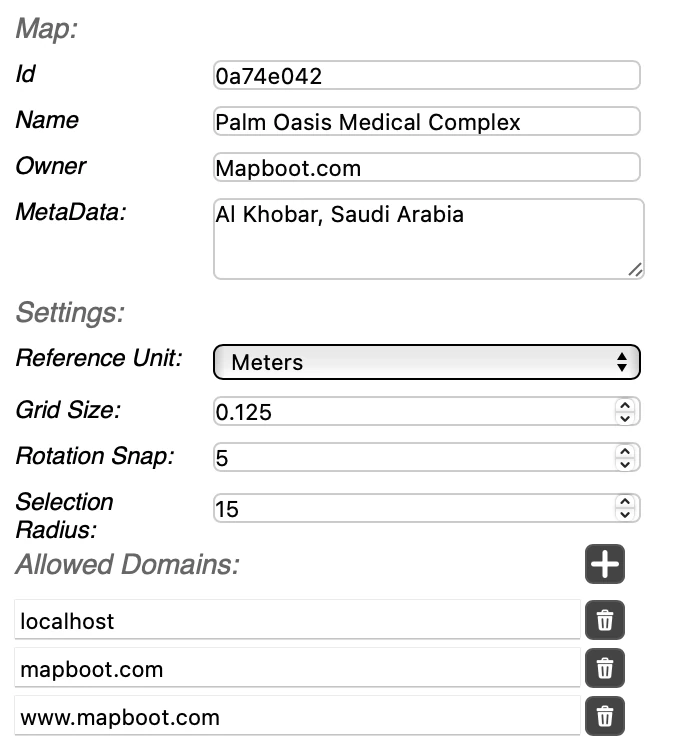
- Id — map id.
- Name — name of the map .
- Owner — Usually the website of the location. This will be displayed if custom branding features are enabled on the account.
- Meta Data — Stores general metadata about the map.
- Reference Unit — Defines the unit of measurement used (e.g., meters or feet).
- Grid Size — Specifies the spacing of the editor grid.
- Snap Rotation — Sets the rotation increment when rotating a selection.
- Selection Radius — Determines how close the cursor must be to select an element.
- Allowed Domains — Lists the whitelisted domains that are permitted to host the viewer.
If you have questions or want us to review your map structure, email contact@mapboot.com.