Groups (Buildings) & Layers (Floors)
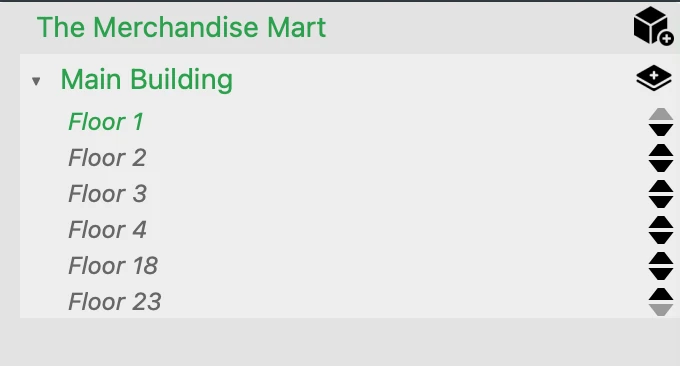
This page explains Groups & Layers in MapBoot and how they structure your maps for multi‑building, multi‑floor venues.
Overview
- A map can contain one or more Groups; in most projects, each Group represents a building.
- Each Group (building) contains one or more Layers, where each Layer corresponds to a floor.
- Groups can also represent non‑building transition areas (e.g., Outside) used to connect buildings.
Terminology
- Group — a top‑level entity inside a map. Typically a building, but can also be a transition area (Outside, Courtyard, Plaza).
- Layer — a child of a Group; each Layer represents a floor of that building (or a logical layer of a transition area).
Structure
Map
└── Group A (Building)
    ├── Layer 1 (First Floor)
    └── Layer 2 (Second Floor)
└── Group B (Building)
    ├── Layer 1 (First Floor)
    └── Layer 2 (Second Floor)
└── Group: Outside (Transition)
    └── Layer(s) for paths/courtyards/plazas
- Groups have names. Use clear labels (e.g., "Main Library", "Science Building", "North Annex").
- Layers are floors. Add floors up to your plan's limits.
Properties Panel (context‑aware)
Group
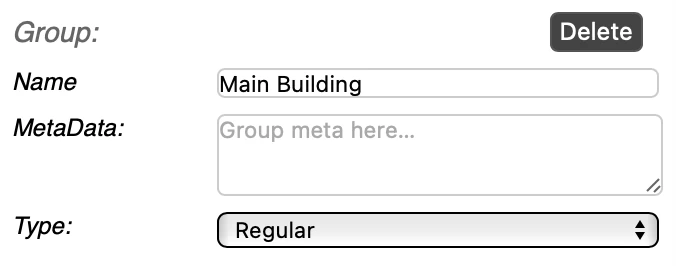
Typical fields when a group is selected:
- Name — name of the group.
- Meta Data — used to store the group metadata.
- Type — Regular or Transit.
Group Types: - Regular — Standard building or structure containing layers/floors. - Transit — Outdoor or transitional areas used to connect buildings (e.g., courtyards, plazas, outdoor paths).
Layer
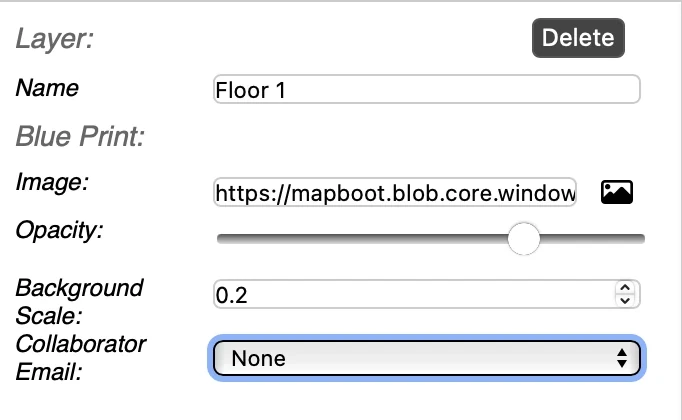
When you select a Layer in the tree, the Properties panel updates with layer-specific fields:
- Name — rename the floor/layer (e.g., "Ground Floor", "First Floor", "Basement").
- Blueprint Image — upload or replace a background floorplan image (PNG/JPG).
- Opacity — adjust the transparency of the blueprint (0–100).
- Background Scale — scale the blueprint image to match real-world dimensions (in map units).
- Collaborator Email — assign a collaborator to work on this specific layer (if collaboration is enabled).
Blueprint Tips
- Use Opacity to fade the blueprint while tracing walls and paths.
- Adjust Background Scale carefully so that vector geometry aligns with real-world measurements.
- Ensure overlapping floorplans (for the same building) align perfectly across layers.
Working with Groups & Layers
Creating Groups
- In the Map Tree, click the Add Group button.
- Give the group a descriptive name (e.g., "Science Building", "Main Library").
- Choose the Type: Regular for buildings, Transit for outdoor connecting areas.
Creating Layers
- Select a Group in the Map Tree.
- Click Add Layer to create a new floor within that group.
- Name the layer appropriately (e.g., "Ground Floor", "Second Floor").
- Upload a Blueprint Image if available.
Selecting and Editing
- Click any Group or Layer in the Map Tree to make it active.
- The Properties panel updates to show context-specific fields.
- When a Layer is active, the Viewport displays that floor's blueprint and geometry.
Multi-Floor & Multi-Building Navigation
For accurate pathfinding across floors and buildings:
Transition Points
Transitions between floors or buildings must occur only at registered locations:
- Between floors: Use locations such as stairs, elevators, or escalators. Ensure they exist on both connected floors.
- Between buildings: Use designated entry/exit points such as main entrances or connecting paths.
This setup ensures the routing engine can calculate correct paths and provide accurate turn-by-turn directions.
Connecting Floors: 1. Multi-select the floors with Ctrl + Click. 2. The last selected floor becomes the main selection. 3. Select the access point you want to bridge (e.g., stairwell entrance). 4. Use the Twins menu to pick the corresponding point on the other floor. 5. A twin point indicator confirms the connection.
Connecting Buildings: - Use the same twin-point process to link entry/exit points between different Groups. - Consider creating a Transit Group (type: Transit) for outdoor pathways that connect multiple buildings.
For detailed guidance on transitions, see the Transit documentation.
Best Practices
- Use clear naming conventions — Name Groups and Layers descriptively (e.g., "North Wing", "Basement Level").
- Organize logically — Group related floors under the same Group (building).
- Align blueprints carefully — Ensure overlapping floorplans for the same building align perfectly across layers.
- Set proper scale — Verify the Background Scale matches real-world dimensions for accurate routing.
- Use Transit Groups strategically — Create Transit Groups for outdoor areas that connect multiple buildings.
- Tag development work — Use DEV tags on Groups/Layers during development; they won't appear in the published version.
- Connect transition points properly — Ensure stairs, elevators, and building entrances are properly twinned across floors/groups.
Troubleshooting
Blueprint doesn't align with geometry - Adjust the Background Scale value in the Layer properties. - Ensure the blueprint image resolution is adequate.
Can't find a layer in the viewport - Click the Layer in the Map Tree to make it active. - Use the Center View button in the toolbar to focus on the active floor.
Routes don't work between floors - Verify that transition points (stairs, elevators) are properly twinned using the Twins menu. - Ensure both transition points are connected to the pathfinding network on their respective floors.
Collaborator can't see a layer - Check that the Collaborator Email field is correctly filled in the Layer properties. - Verify collaboration is enabled for your tenant.
For additional questions about collaboration, see the Collaboration documentation.
Questions about structuring your site? Email contact@mapboot.com.