Core Concepts
Understanding these fundamental concepts will help you create better maps faster and troubleshoot issues more effectively.
How MapBoot Works (30-second overview)
MapBoot is a vector-based indoor mapping system with three core components:
- Editor — Where you draw walls, paths, and locations
- Routing Engine — Calculates paths between locations using your network
- Viewer — The interactive map users see on your website
Key principle: You create the visual map (walls, rooms) and a separate routing network (invisible paths). The routing engine uses only the network, not the visual elements.
Map Structure
Hierarchy
Map (entire facility)
└── Group (building or outdoor area)
    └── Layer (floor or level)
        └── Geometry (points, lines, polygons)
Components Explained
Map - Top-level container for your entire facility - Contains global settings (units, grid size, allowed domains) - Has a unique Map ID used for embedding
Group - Represents a building or outdoor area - Can be type "Regular" (building) or "Transit" (outdoor connector) - Groups help organize multi-building facilities
Layer - Represents a floor within a building - Each layer has its own blueprint image - Layers can be connected via transitions (elevators, stairs)
Geometry - Points — locations. - Lines — walls, paths, edges. - Polygons — rooms, surfaces, areas.
Example: University Campus
Geometry Types
Points
Single vertex in space. Points are used for:
- Location markers (orphan points) — where labels, cards, icons appear
- Access points (key icon) — where users enter locations
- Vertices — corners and connection points in graphics
- Route points — connection points in routing network
Creating points:
- Standalone: Click Add Point button (+)  , click in viewport to add a point , press Esc to exit points adding mode
- As part of lines: Lines are created automatically when drawing points
, click in viewport to add a point , press Esc to exit points adding mode
- As part of lines: Lines are created automatically when drawing points
Drawing vs Selection
The Point/Line/Polygon buttons  in the toolbar are for selection mode. To draw, use the Add Point button (+) .
Lines
Connection between two points. Lines exist on two separate layers:
Graphics Layer:
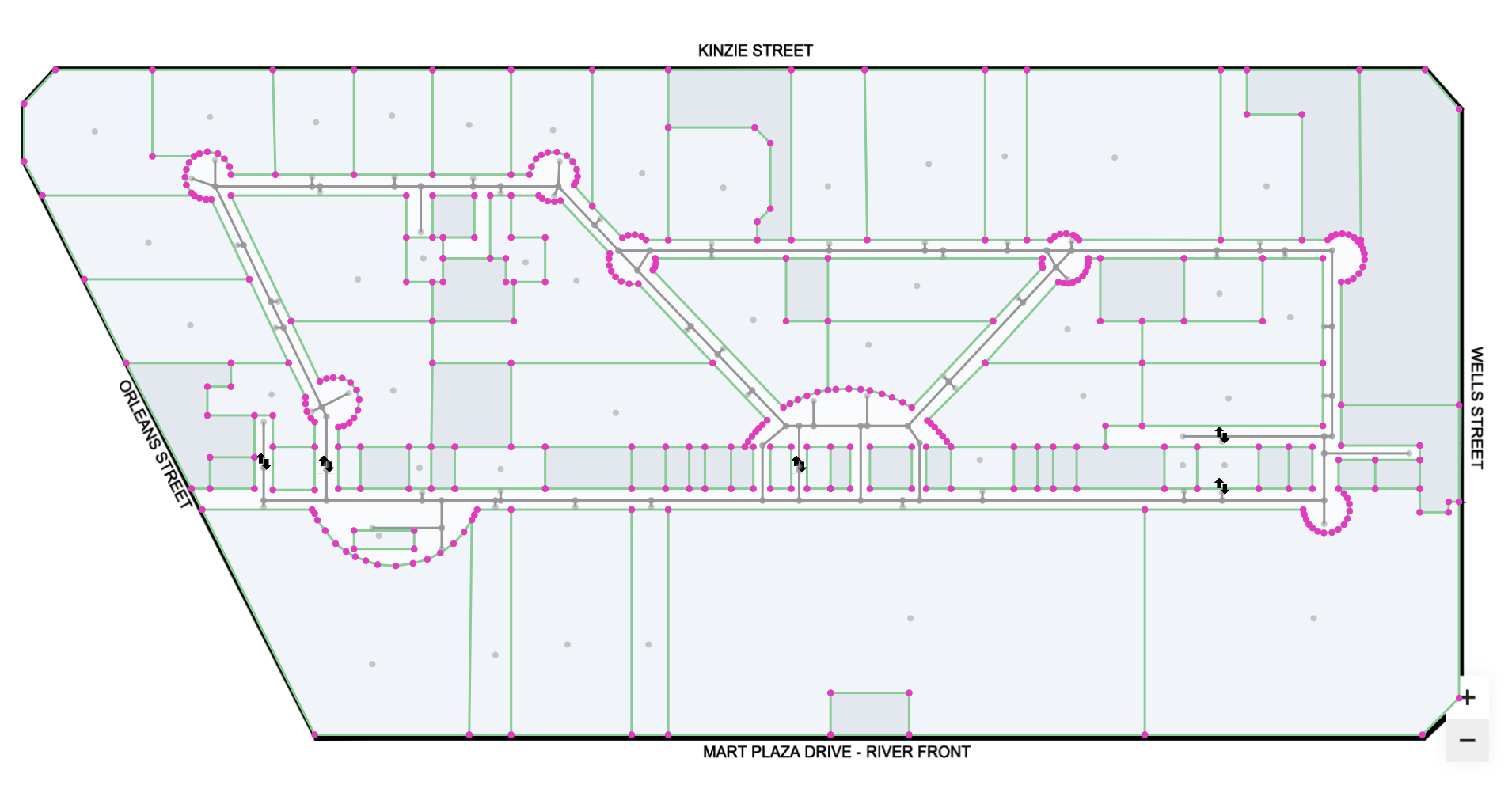
- Walls — visual boundaries (with wall style).
- Edges — polygon boundaries.
- Purely visual, do not affect routing (Highlighted in green).
Routes Layer:
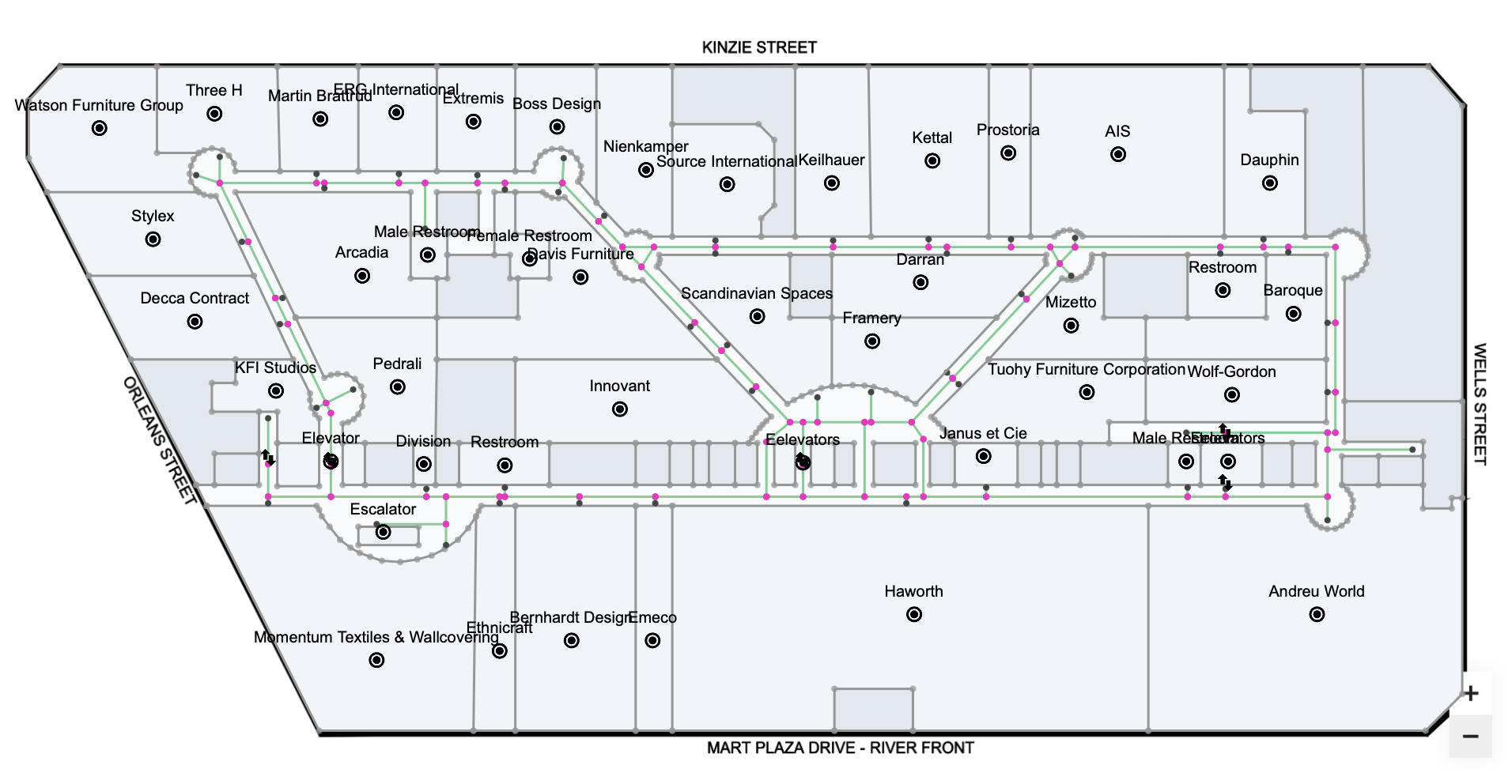
- Routing paths — walkable routes (Highlighted in green).
- Define where people can walk.
- Connect location access points.
- Completely independent from wall graphics.
Line behavior:
- Lines can intersect and create shared points automatically.
- Lines can be extended by adding more points.
- Graphics and routes are on separate sub layers.
Polygons
Closed shape formed by connecting lines. Polygons are used for:
- Surfaces — visual highlights for rooms/areas
- Location footprints — areas that highlight when searched
Creating polygons:
- Draw lines that form a closed loop (no gaps).
- Select the lines.
- Apply a polygon style (Basic, Public, Private).
Polygon Requirement
The line loop must be completely closed with no gaps or overlaps. Zoom in to verify all endpoints truly connect.
The Style System
Styles are applied to elements on the Graphics sub-layer and control their appearance. The style menu is located in the toolbar on the right side.

Line Styles (Walls)
Styles are only for the Graphics sub-layer. The Routes sub-layer has no styles.
| Style | Visual | Use Case |
|---|---|---|
| Thick | Thick line | Outer/perimeter walls, building exterior |
| Thin | Thin line | Inner/interior walls, room dividers |
Graphics vs Routes Sub-Layers
- Graphics sub-layer: Use Thick/Thin wall styles for visual walls
- Routes sub-layer: No styles - routes are functional pathfinding lines, not visual elements
Applying Styles
Wall styles are in the toolbar (right side). The quickest way is to select multiple lines (group selection with Cmd/Ctrl+Click or drag) and apply the style to all at once.
Polygon Styles (Surfaces)
| Style | Visual | Use Case |
|---|---|---|
| Base | Light fill | Base floor surface (whole floor area) |
| Public | Highlight | Accessible/visitable rooms, public areas |
| Private | Different color | Restricted areas, staff only, storage |
Tip
Surface styles are in the toolbar (right side). Surfaces are typically styled as you create them: select the closed loop of lines, then apply the surface style from the toolbar.
Preview Mode for Viewing Styles
Editor gizmos can hide wall styles after being applied. Click the Preview button  in the editor toolbar to hide all gizmos and see only your styled graphics clearly. Note: Preview mode does NOT test routing - it only shows graphics without visual clutter.
The Routing Network
The routing network is a graph of connected points and lines on the routes layer that determines where users can walk.
Graphics vs Routes Separation
Graphics layer = Walls and surfaces (visual only)
Routes layer = Pathfinding network (functional)
These are completely separate. Routes are not affected by walls.
Network Rules
- Routes are on a separate layer from graphics
- Routing lines have no style
- Points must physically touch (shared vertices, not just visual proximity)
- Every location must connect to the network via access points
- Disconnected segments cannot route between each other
Anatomy of a Route
Start Location
    ↓ (access point)
Routes Layer Network
    ↓ (walkable path lines)
Destination Access Point
    ↓
End Location
If any link in this chain is broken, routing fails.
Common Network Issues
Micro-gaps: Points look connected but have a tiny gap.
- Solution: Enable Snap, zoom in, move points to truly test connection.
Missing routing lines: Accessible areas not connected.
- Solution: Draw routing lines (routes layer) through corridors and rooms.
No access points: Location exists but has no entry points defined.
- Solution: Add access points to location via Properties.
Isolated route segments: Parts of the routes network don't connect.
- Solution: Ensure all routing lines form a continuous connected network.
Locations
Locations are searchable, navigable places in your map.
Location Components
- Marker Point — where the card/icon appears (movable)
- Name — searchable text (required)
- Meta Data — keywords for search (optional but recommended)
- Access Points — doors/entrances (required for routing)
- Surfaces — visual highlight areas (optional)
Creating Location Markers
Location marker points (orphan points) can only be created on the routes layer. If you create an orphan point on the graphics layer, it will be automatically deleted.
How Routing Works with Locations
User searches "Conference Room A"
    ↓
MapBoot finds location by name/metadata
    ↓
Routing engine finds closest connected access point
    ↓
Calculates path through network
    ↓
Displays route with turn-by-turn directions
Access Points vs. Surfaces
- Access Points control routing (where people enter)
- Surfaces control highlighting (what area glows)
You can have:
- Multiple access points (all entrances).
- Multiple surfaces (scattered areas).
- Access points without surfaces (entrance marker only).
- Surfaces without access points (visual only, not navigable).
Example
A library section might have: - 1 access point (main aisle entrance). - 3 surfaces (three separate shelf ranges). - Result: Users route to the aisle entrance, and all three shelf areas highlight.
Transitions
Transitions connect different floors or buildings, enabling multi-level routing.
Types of Transitions
Floor-to-Floor (vertical) - Connects layers within the same group - Used for elevators, stairs, escalators - Created by "twinning" route points on different floors (often location access points, but can be any route point)
Building-to-Building (horizontal) - Connects groups across outdoor areas - Uses a special "Transit" group for outdoor paths - Links building entrances to outdoor connectors
How Transitions Work
- Place access points at transition locations (stairwell entrances, elevators)
- Multi-select the two layers (Ctrl/Cmd + Click)
- Pick the access point on the primary floor
- Twin it with the matching point on the other floor
- A dashed arrow line appears showing the connection
Transition Rules
- Twinned points must both be on the Routes sub-layer of their respective layers
- Both points must be connected to routing networks on their respective layers
- Transitions are bidirectional by default (can be made one-way)
- The router automatically includes transitions when calculating cross-floor/building routes
Common Use Case
Twinned points are typically part of location access points (e.g., elevator on Floor 1 twinned to elevator on Floor 2), but they don't have to be. Any route point can be twinned to create a vertical or cross-building connection.
Multi-Building Strategy
Create a Transit group named "Outside" with a layer containing outdoor paths. Twin building entrances to this outdoor network to enable cross-building routing.
Units & Scale
Reference Unit
Set once during map creation:
- Meters (m) — metric system.
- Feet (ft) — imperial system.
This affects: - Distance measurements. - Grid spacing. - Route distance display.
Warning
Changing units after drawing geometry will break scale. Choose correctly from the start.
Background Scale
Per-layer setting that adjusts blueprint image size to match real-world dimensions.
Calibration process:
- Identify a known dimension on your blueprint (e.g., 10m room width).
- Measure it in grid units in the editor.
- Calculate:
scale = real_dimension / measured_grid_units. - Enter the scale value in Layer properties.
Example
If a 10-meter room measures 50 grid units: - Scale = 10 / 50 = 0.2. - Set "Background Scale" to 0.2.
Collaboration Model
For large projects, MapBoot supports team collaboration.
Roles
Owner
- Creates map structure (groups, layers).
- Assigns layers to collaborators.
- Creates cross-building transitions.
- Publishes final map.
Collaborator
- Edits assigned layers only.
- Can create transitions between own layers.
- Cannot modify structure or publish.
Workflow
- Owner creates all groups and layers.
- Owner invites collaborators (by email).
- Owner assigns specific layers to each person
- Collaborators draw geometry on assigned layers
- Owner reviews, connects buildings, publishes
Tip
Assign layers by building or floor type (e.g., one person does all ground floors, another does all second floors) for efficient parallel work.
Publishing vs. Saving
Important distinction:
Saving
- Stores your work in the editor
- Changes are private and only visible to you
- Does not update the public viewer
Publishing
- Takes a snapshot of saved work.
- Makes changes live in the public viewer
- Required for changes to appear on embedded maps
Workflow:
- Make changes in editor
- Save frequently to avoid data loss
- Publish when ready to make changes public
Common Mistake
Saving ≠ Publishing. Users won't see your updates until you click "Publish".
Key Takeaways
✅ Graphics and routes are separate sub-layers - Walls are visual only, routes define navigation
✅ Routes are independent of graphics - Routing network doesn't depend on wall graphics
✅ Locations need access points connected to the routes network
✅ Points must truly connect in the routes network, not just appear close
✅ Transitions twin route points across floors/buildings (commonly location access points)
✅ Publish to make changes live, saving is not enough
What's Next?
- Quick Start Guide — Create your first map
- Editor Guide — Master the drawing tools
- Workflows — Step-by-step guides for common scenarios
- Glossary — Quick reference of terms
Questions about these concepts? Email contact@mapboot.com