Quick Start Guide
Goal: Create your first indoor map in 30 minutes
This guide walks you through creating a simple single-floor map from start to finish. Perfect for first-time users who want to understand the basics.
Before You Start
What you'll need:
- ✅ A MapBoot account (sign up)
- ✅ A floorplan image (PNG or JPG)
- ✅ Basic knowledge of the building layout
- ✅ 30 minutes of uninterrupted time
What you'll learn:
- How to set up a map structure
- How to trace walls and create graphics
- How to create routing paths on routes layer
- How to add locations
- How to publish and embed your map
Step 1: Create Your Map (2 minutes)
- Log in to MapBoot Dashboard
- Click "New Map"
- Click "Open in Editor" (the edit map button)
Note
The following steps are done inside the MapBoot Editor.
Configure Map Settings
- In the Map Tree (left panel), select the Map at the top of the tree
- The map properties will appear in the Properties panel (right side)
- Give your map a name (e.g., "Main Building")
- Set your measurement unit:
- Meters (m) — for metric
- Feet (ft) — for imperial
Tip
Choose the unit system that matches your floorplan measurements. This cannot be changed later without affecting scale.
Step 2: Set Up Building Structure (3 minutes)
Create a Group (Building)
- In the Map Tree (left panel), you'll see your map name
- Click "Add Group"
- Name it "Main Building"
- Keep Type as "Regular" (not Transit)
Create a Layer (Floor)
- Select the Group you just created
- Click "Add Layer"
- Name it "Ground Floor"
- The layer is now active (highlighted in the tree)
Upload Blueprint
- With the layer selected, look at Properties (right panel)
- Click "Upload Blueprint Image"
- Choose your floorplan PNG/JPG
- The image appears in the viewport
Scale the Blueprint
- In Properties, find "Background Scale"
- Measure a known distance on your blueprint (e.g., a room that's 10 meters wide)
- Adjust the scale value until the grid matches real-world size
- Use Opacity slider to make the blueprint semi-transparent (around 50-70%) for easier tracing
Scaling Tips
- Find a dimension you know precisely (like a standard door width: 0.9m or 3ft)
- Zoom in close and count grid squares
- Adjust scale until measurements match reality
Step 3: Draw Walls & Surfaces (10 minutes)

Enable Drawing Tools
-
Make sure the Sub Layer is set to "Graphics"
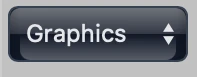 (this is the default value for drawing walls and surfaces)
 -
Make sure Snap
 is enabled (helps align points to grid or to other points)
 - Zoom in to the area where you'll start
How Drawing Works
The Point/Line/Polygon buttons in the toolbar are for selection mode only. To start drawing, click the Add Point button (+) in the toolbar.
Sub Layer Selection
- Graphics sub-layer = For drawing walls and surfaces (visual elements)
- Routes sub-layer = For drawing pathfinding routes (functional navigation)
Make sure you're on the correct sub-layer before drawing!
Draw Exterior Walls
- Click the Add Point button (+)
 in the toolbar to start drawing
 - Click to place your first point at a corner
- Click to place the next point along the wall
- Continue clicking around the building perimeter
- Close the loop by clicking near your starting point (it will snap)
- Press Esc to finish and switch back to selection mode
Apply Wall Style

- Select the line you just drew (click on it)
- In the toolbar on the right side, find the Wall Style menu
- Click "Thick" style for outer/perimeter walls (Darl grey)
Style Location
Wall and surface styles are in the toolbar on the right side, not in the Properties panel.
Viewing Styles Clearly
Editor gizmos can hide wall styles after being applied. To see your graphics clearly, click the Preview button  in the toolbar - this hides all gizmos and shows only the styled graphics of your map.
Draw Interior Walls
- Click the Add Point button (+) again to start a new line
- Draw lines for interior partitions (room dividers)
- Draw walls as they appear on your blueprint (with or without door gaps - walls are purely visual)
- When lines intersect, MapBoot automatically creates shared points
- Press Esc to finish each line
- Select the interior wall lines
- In the toolbar (right side), click "Thin" wall style (Ligth grey)
Group Selection
You can select multiple lines at once (Cmd/Ctrl+Click or drag select) and apply the style to all of them at once - this is the quickest way.
Pro Tip
- Use Cmd/Ctrl + drag to pan around the viewport
- Use scroll wheel to zoom
- Press Delete to remove mistakes
- Save frequently using the Save button in the toolbar
Step 4: Create Floor Surface (3 minutes)
Create the Floor Polygon
- Switch to Line selection mode (top toolbar)
- Select the closed loop of exterior walls
- In the toolbar (right side), find the Surface Style menu
- Click "Base" style (covers the whole floor area), Apply "Public" style for accessible areas (rooms visitors can enter), Apply "Private" style for restricted areas (storage, maintenance)
- The enclosed area fills with a light color
Surface Style Application
Surfaces are typically styled as you create them. Select the lines that form a closed loop, then apply the surface style from the toolbar. You can also apply styles to group selections of existing surfaces.
Note
Surfaces are visual only. They help highlight areas but don't affect routing.
Step 5: Build Routing Network (7 minutes)
Critical: Without routing paths, users cannot navigate to locations.
Routes Layer
The routing network is on a separate routes layer, completely independent from walls/graphics. Routes define where people can walk and connect location access points.
Draw Walkable Paths
- Important: Set the Sub Layer to "Routes" (this is where you draw pathfinding routes)
- Click the Add Point button (+) in the toolbar to start drawing
- Draw lines through corridors and walkable areas
- These lines represent where people can actually walk
- Routes should pass through doorways and connect all accessible areas
- Press Esc to finish each routing line
Sub Layer Must Be Set to Routes
Before drawing routing paths, make sure the Sub Layer is set to "Routes", not "Graphics". Routes and graphics are on separate sub-layers.
Important Rules
- Routes are independent of wall graphics
- Routes should follow realistic walking paths through rooms and corridors
- Create a continuous network connecting all areas
Common Mistake
Routing lines must form a connected network. Isolated segments will prevent navigation between areas.
Step 6: Add Locations (4 minutes)
Locations are searchable places users can navigate to.
Create a Location
- Important: Ensure you're on the routes layer (location points can only be added on routes layer)
- Click the Add Point button (+) in the toolbar
- Click once where you want the location marker
- Press Esc immediately
- You've created an "orphan point" — MapBoot converts this to a location automatically
Routes Layer Required
Location points can only be created while the routes layer is selected. If you try to create an orphan point on the graphics layer, it will be automatically deleted.
Name the Location
- Select the point you just created
- In Properties, fill in:
- Name: e.g., "Conference Room A"
- Description: e.g., "Main conference room, seats 20"
- Meta Data: e.g., "meeting, conference, room"
Add Access Points
- In the location Properties, find "Access Points"
- Click "Pick"
- Click the entrance point(s) for this location on the routes network
- A key icon appears on selected points
Add Surface (Optional)
- In Properties, find "Surfaces"
- Click "Pick"
- Click the polygon that represents this room
- When users search for this location, the surface will highlight
Tip
- Add all entrance access points if a room has multiple entrances
- The router will automatically choose the closest entrance
- Move location points by dragging them to adjust location card/icon position on the map
Step 7: Test & Publish (1 minute)
Save Your Work
- Click "Save All"
 in the toolbar
 - Wait for the success confirmation
- You can also Save Layer
 , this will only save changes made to the selected layer.
Publish
- Click the "Publish"
 button in toolbar
 - Publishing makes your changes visible in the public viewer
- Click the Viewer
 button to open a new tab to view the map after getting published
 - Note: Saving ≠ Publishing. You must publish to make changes live.
Get Your Map ID
- Select your Map (top of tree)
- In Properties, copy the Map ID (e.g.,
0a74e042) - You can also copy the mapId in the maps list on your dashboard as well.
Step 8: Embed in Website (Optional)
Add this code to your website, replacing <YOUR_MAP_ID>:
<div id="mapboot"></div>
<script src="https://cdn.mapboot.com/viewer/latest/mapboot.min.js"></script>
<script>
  window.mapboot.init({
    target: '#mapboot',
    mapid: '<YOUR_MAP_ID>',
    unit: 'm'  // Use 'm' or 'ft' to match your map
  });
</script>
Whitelist Your Domain
- In the Editor, select your Map in the tree
- In Properties, find "Allowed Domains"
- Add your website domain (e.g.,
example.com,wwww.example.com) - Save and publish again
✅ Success Checklist
You've successfully created a map if:
- ✅ You can see walls and surfaces
- ✅ Locations are searchable
- ✅ Routes generate between any two locations
- ✅ Routes follow realistic paths through doors
- ✅ The map is published
- ✅ You have your Map ID
What's Next?
Now that you understand the basics, explore advanced features:
- Core Concepts — Deep dive into how MapBoot works
- Multi-Floor Buildings — Connect floors with stairs/elevators
- Multi-Building Campus — Connect separate buildings
- Best Practices — Professional tips for quality maps
Troubleshooting
"No route found" - Ensure routing lines connect all entrances on routes layer to the routing network - Check that access points are defined for both locations
"Blueprint is the wrong size" - Adjust the Background Scale value in Layer properties - Use a known measurement to calibrate
"Location doesn't appear in search" - Verify the location has a Name filled in - Ensure the location has at least one Access Point - Publish the map (unpublished changes aren't searchable)
"Map won't embed" - Add your domain to Allowed Domains in Map properties - Verify you're using the correct Map ID - Ensure the map is Published (not just saved)
Need more help? Email contact@mapboot.com or check Troubleshooting.