Embedding MapBoot Viewer
Learn how to embed your interactive MapBoot map on any website.
Quick Start (5 minutes)
What You'll Need
- ✅ A published MapBoot map
- ✅ Your Map ID
- ✅ A website where you can add HTML/JavaScript
Step 1: Get Your Map ID
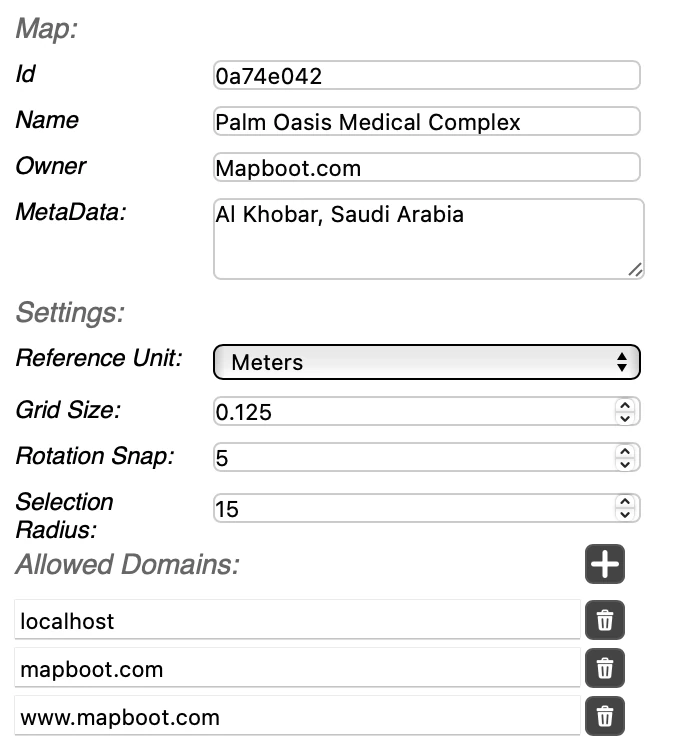
- Open your map in the Editor
- In the Map Tree, select the Map (top level)
- In Properties panel, find and copy your Map ID
- Example:
0a74e042
Map Must Be Published
Your map must be published (not just saved) for the viewer to display it. Click the "Publish" button in the Editor toolbar.
Step 2: Whitelist Your Domain
Why? MapBoot uses domain whitelisting for security. Only allowed domains can embed your map.
- In the Editor, select your Map
- In Properties, find "Allowed Domains"
- Add your website domain(s):
example.com(automatically allowswww.example.comandexample.com)subdomain.example.com(for specific subdomains)localhost(for local testing)- Save and Publish the map
Multiple Domains
You can add multiple domains (one per line) if you need to embed on multiple sites.
Step 3: Add the Embed Code
Add this code snippet to your HTML page, replacing <YOUR_MAP_ID> with your actual Map ID:
<div id="mapboot"></div>
<script src="https://cdn.mapboot.com/viewer/latest/mapboot.min.js"></script>
<script>
  window.mapboot.init({
    target: '#mapboot',
    mapid: '<YOUR_MAP_ID>',
    unit: 'm'         // 'm' for meters or 'ft' for feet
  });
</script>
Code Breakdown
<div id="mapboot"></div>— Container element where map will render<script src="...">— Loads the MapBoot viewer librarywindow.mapboot.init({...})— Initializes the map with your configuration
Configuration Options
Basic Options
window.mapboot.init({
  target: '#mapboot',           // Required: CSS selector for container
  mapid: 'your-map-id',         // Required: Your map ID
  unit: 'm',                    // Required: 'm' or 'ft'
});
Container Sizing
The map will fill its container element. Control size with CSS:
Or in your CSS file:
Responsive Design
For responsive sizing:
<div class="map-container">
  <div id="mapboot"></div>
</div>

<style>
.map-container {
  width: 100%;
  position: relative;
  padding-bottom: 56.25%; /* 16:9 aspect ratio */
}

#mapboot {
  position: absolute;
  top: 0;
  left: 0;
  width: 100%;
  height: 100%;
}
</style>
Testing Locally
To test on your local development environment:
- Add
localhostto Allowed Domains in your map settings - Serve your HTML file via a local server:
- Open
http://localhost:8000in your browser
File Protocol Doesn't Work
Opening HTML files directly (file://) won't work due to CORS restrictions. You must use a local server.
Common Integration Scenarios
WordPress
- Install a plugin like "Insert Headers and Footers" or use a custom HTML block
- Add the embed code to your page/post
- Ensure your domain is whitelisted in MapBoot
React / Vue / Angular
import { useEffect } from 'react';

function MapComponent() {
  useEffect(() => {
    // Load MapBoot script dynamically
    const script = document.createElement('script');
    script.src = 'https://cdn.mapboot.com/viewer/latest/mapboot.min.js';
    script.onload = () => {
      window.mapboot.init({
        target: '#mapboot',
        mapid: 'your-map-id',
        unit: 'm'
      });
    };
    document.body.appendChild(script);

    return () => {
      document.body.removeChild(script);
    };
  }, []);

  return <div id="mapboot" style={{ width: '100%', height: '600px' }}></div>;
}
Static HTML Site
Simply paste the embed code where you want the map to appear:
<!DOCTYPE html>
<html>
<head>
  <title>Campus Map</title>
</head>
<body>
  <h1>Find Your Way</h1>

  <div id="mapboot" style="width: 100%; height: 600px;"></div>
  <script src="https://cdn.mapboot.com/viewer/latest/mapboot.min.js"></script>
  <script>
    window.mapboot.init({
      target: '#mapboot',
      mapid: 'your-map-id',
      unit: 'm'
    });
  </script>
</body>
</html>
Troubleshooting
Nothing Renders
Possible causes: - Wrong Map ID - Map not published (only saved) - JavaScript console shows errors
Fix: 1. Verify Map ID is correct 2. Ensure map is published in editor 3. Open browser console (F12) and check for error messages
CORS / Cross-Origin Error
Symptoms: - Console error: "Access-Control-Allow-Origin" - Map doesn't load
Fix:
1. Add your domain to Allowed Domains in map settings
2. Make sure you added just the domain, not full URL:
- ✅ Correct: example.com
- ❌ Wrong: https://example.com/map-page
3. Save and Publish the map after adding domain
Map Shows Old Version
Symptoms: - Changes you made in Editor don't appear in embedded map
Fix: 1. Ensure you clicked "Publish" (not just "Save") in the Editor 2. Clear your browser cache 3. Try hard refresh: Ctrl+F5 (Windows) or Cmd+Shift+R (Mac)
Map is Blank But Container Shows
Possible causes: - Container has no height - CSS conflicts
Fix: 1. Set explicit height on container:
2. Check browser console for CSS errors 3. Inspect element to verify container has actual heightMap Doesn't Fit Mobile Screens
Fix: Use responsive CSS (see Container Sizing above) and add viewport meta tag:
Best Practices
Performance
- ✅ Load MapBoot script once per page (not multiple times)
- ✅ Initialize map after page content loads
- ✅ Use reasonable container sizes (very large maps may impact performance)
User Experience
- ✅ Provide context: Add text explaining the map before embedding
- ✅ Set appropriate container height (500-800px works well)
- ✅ Test on mobile devices
- ✅ Consider adding a "Fullscreen" button if map is small
Maintenance
- ✅ Document your Map ID somewhere safe
- ✅ Monitor for broken embeds after domain changes
- ✅ Update map regularly to reflect facility changes
- ✅ Test embed after publishing map updates
Advanced: Multiple Maps on One Page
If you need to embed multiple maps:
<div id="map-building-a"></div>
<div id="map-building-b"></div>

<script src="https://cdn.mapboot.com/viewer/latest/mapboot.min.js"></script>
<script>
  window.mapboot.init({
    target: '#map-building-a',
    mapid: 'building-a-map-id',
    unit: 'm'
  });

  window.mapboot.init({
    target: '#map-building-b',
    mapid: 'building-b-map-id',
    unit: 'm'
  });
</script>
Next Steps
- Viewer Interface — Learn about end-user features
- Configuration Options — Customize appearance and behavior
- Troubleshooting — Fix common issues
Need help with embedding? Email contact@mapboot.com